Shape how ChatGPT works for your family
ChatGPT offers new ways to learn, create, and make progress toward your goals. Parental controls give families flexibility to guide how it’s used at home, with more safeguards and ways to stay connected.
Parental controls in ChatGPT
Parents and teens can link accounts, giving parents tools to adjust certain features, set time limits, and add safeguards that work for their family.
Set up parental controls
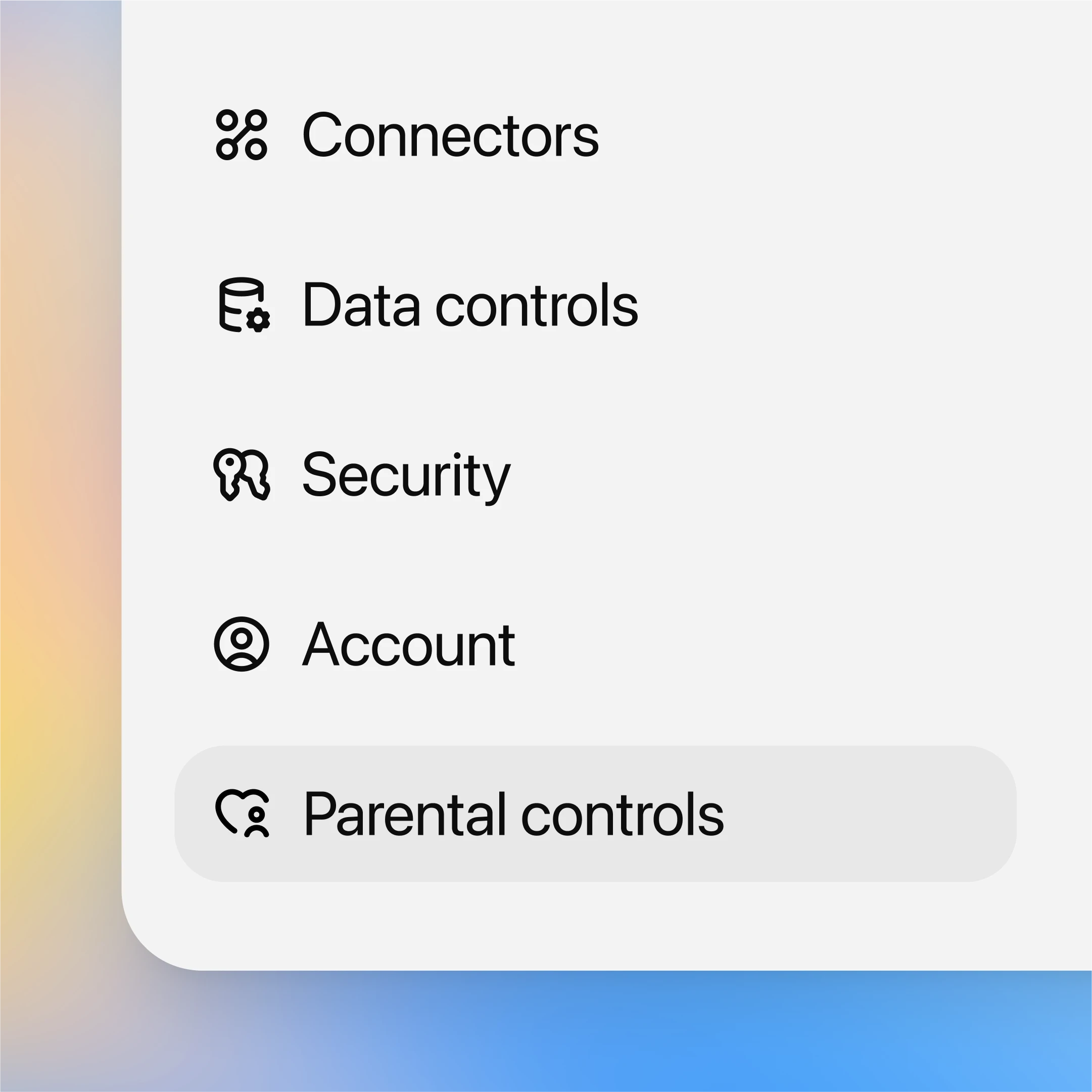
In ChatGPT settings, go to Parental controls or visit ctt.buytoolz.com/parentalcontrols.
Invite your teen to connect by email or text.
Once your teen accepts and your accounts are linked, you can adjust their settings from your account.
Teens can unlink accounts anytime, and the parent will be notified if the accounts are no longer connected.
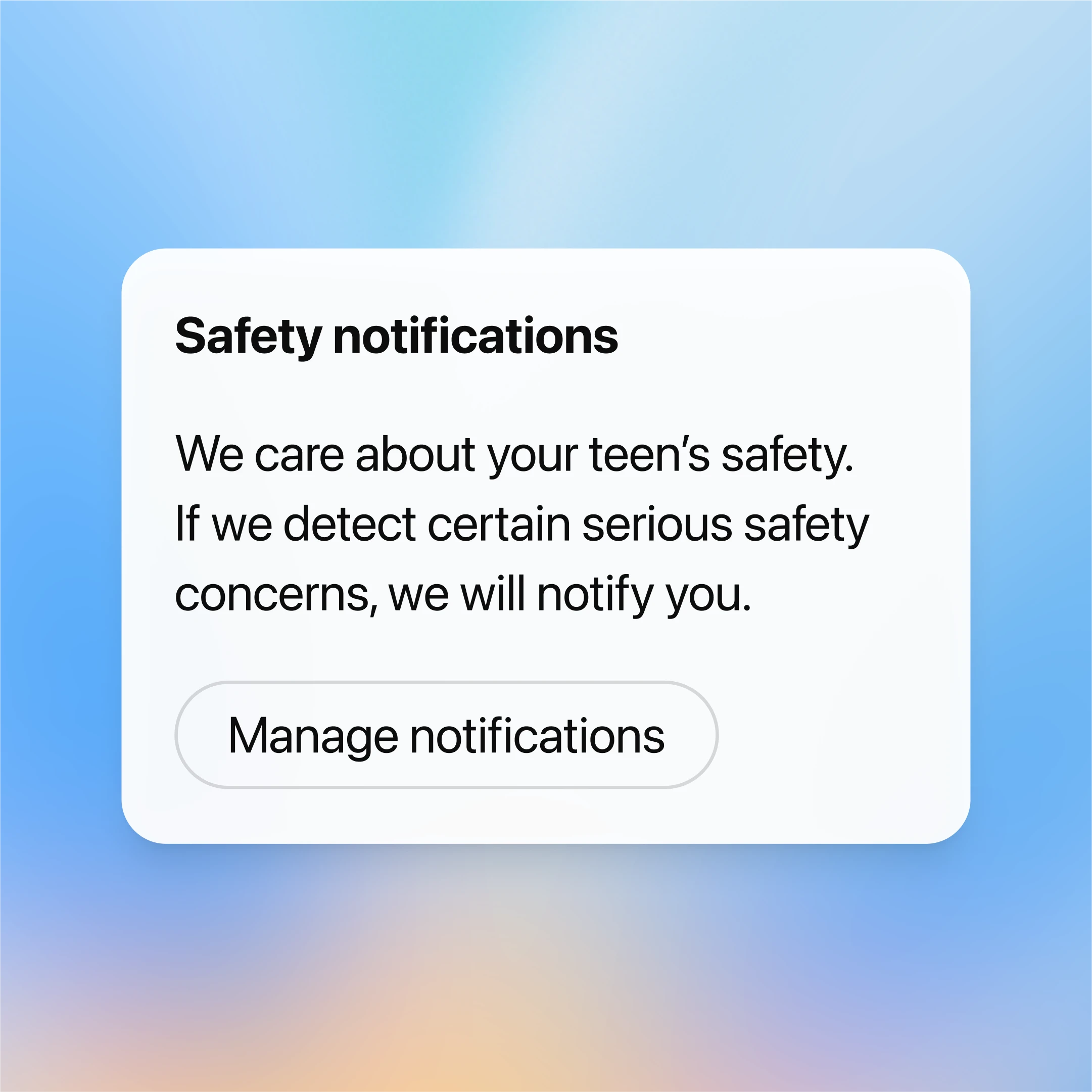
Safety notifications
Parents don’t have access to their teen’s conversations, except in rare cases where our system and trained reviewers detect possible signs of serious safety risk, parents may be notified—but only with the information needed to support their teen’s safety. Parents can choose if they’d like to be contacted by email, SMS, push notification, or all three.
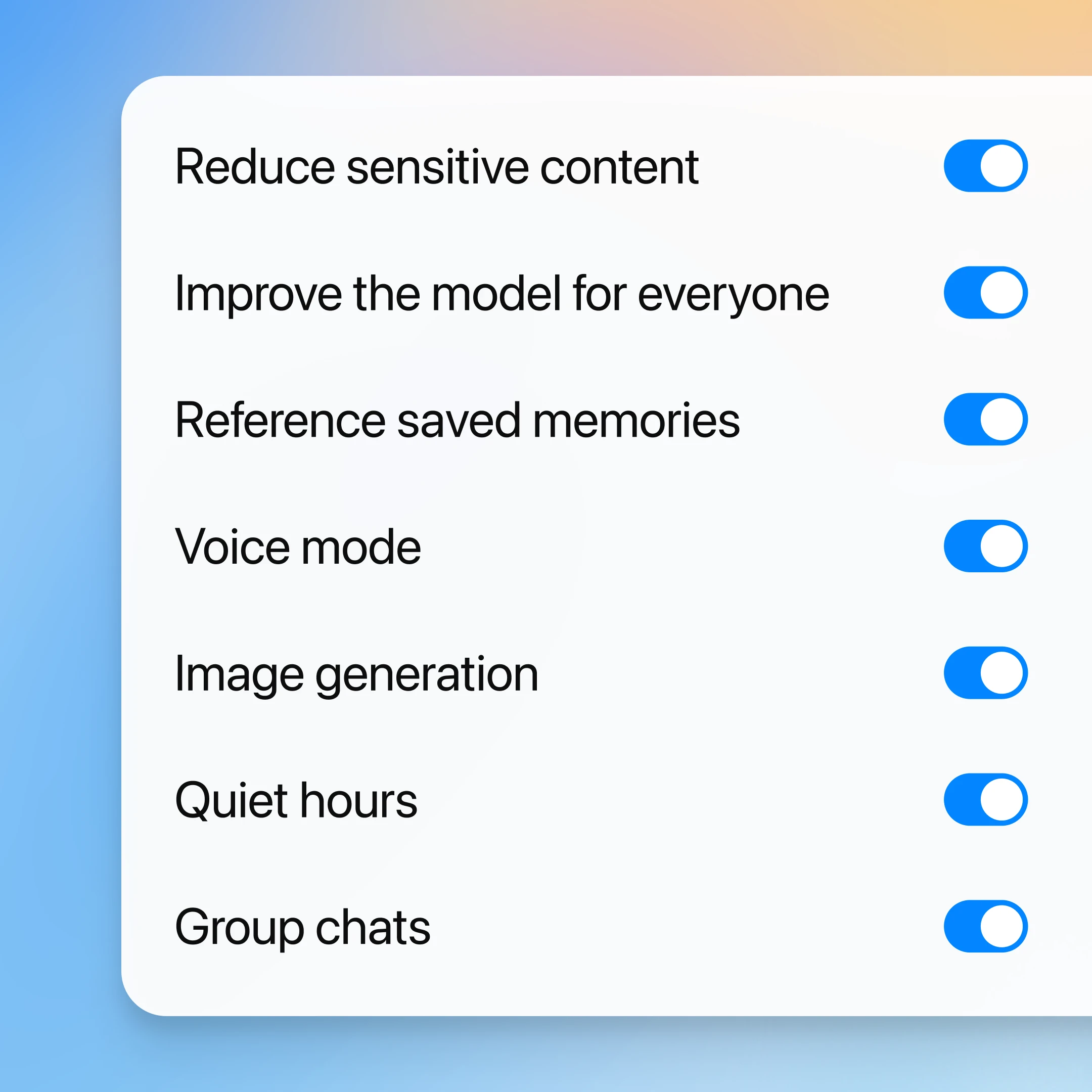
Manage features in ChatGPT
Reduce sensitive content: Teens automatically get additional protections against things like graphic content and viral challenges. Parents can further customize their teen’s experience through parental controls.
Model training: When off, transcripts and files won’t be used to improve models.
Memory: When off, ChatGPT won’t save or use memories in responses.
Voice mode: Remove option to use voice mode.
Image generation: Remove option to create or edit images.
Quiet hours: Set times when ChatGPT can’t be used.
Group chats: Remove option to use group chats.
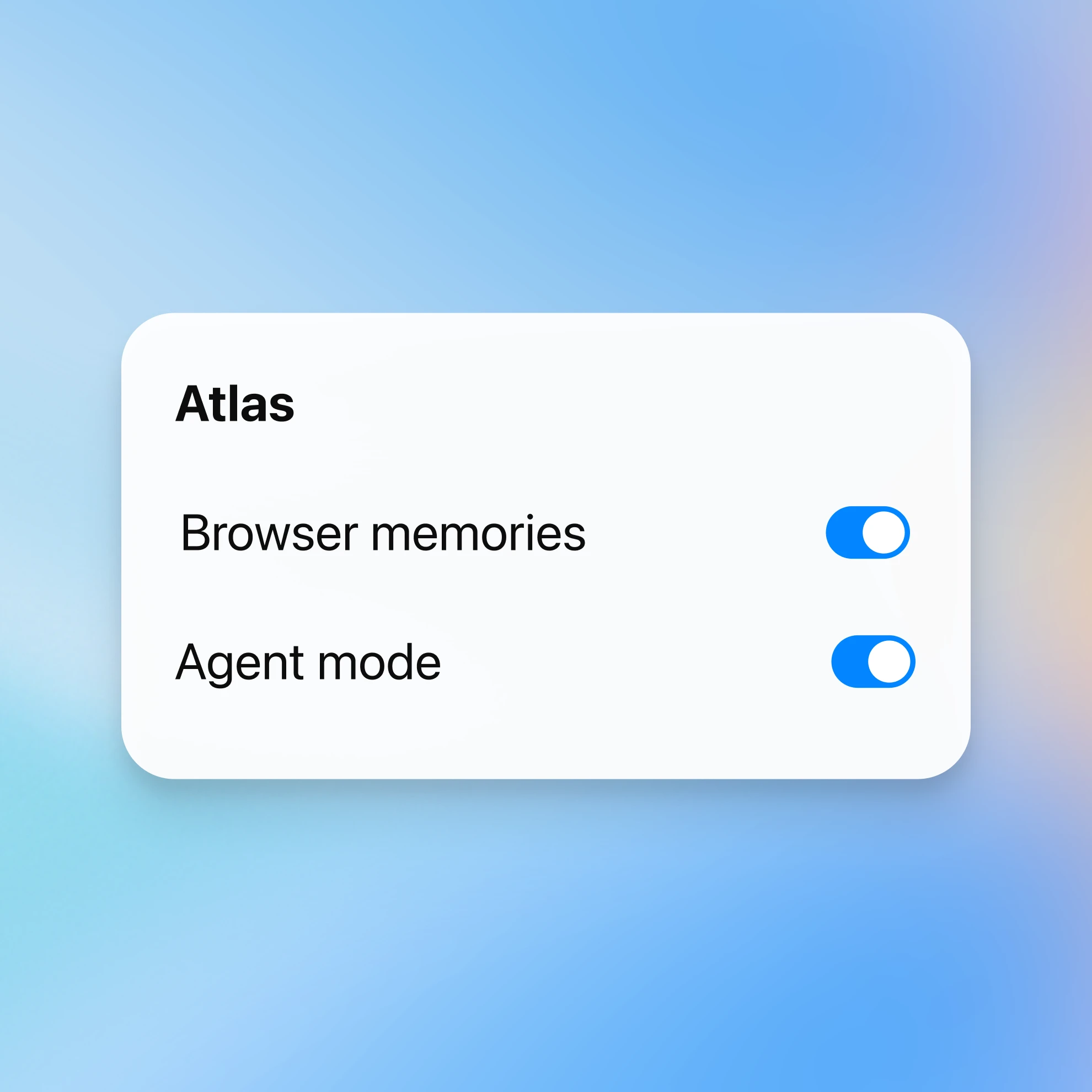
Manage features in ChatGPT Atlas
ChatGPT Atlas is a web browser with ChatGPT built in. You can manage your teen's settings for Atlas directly in ChatGPT including:
Reference browser memories: Allow ChatGPT to reference key details from your child’s browsing history in Atlas.
Agent mode: Allow ChatGPT agent in Atlas to help with more complex, multi-step tasks, like research or shopping.
Manage features in Sora
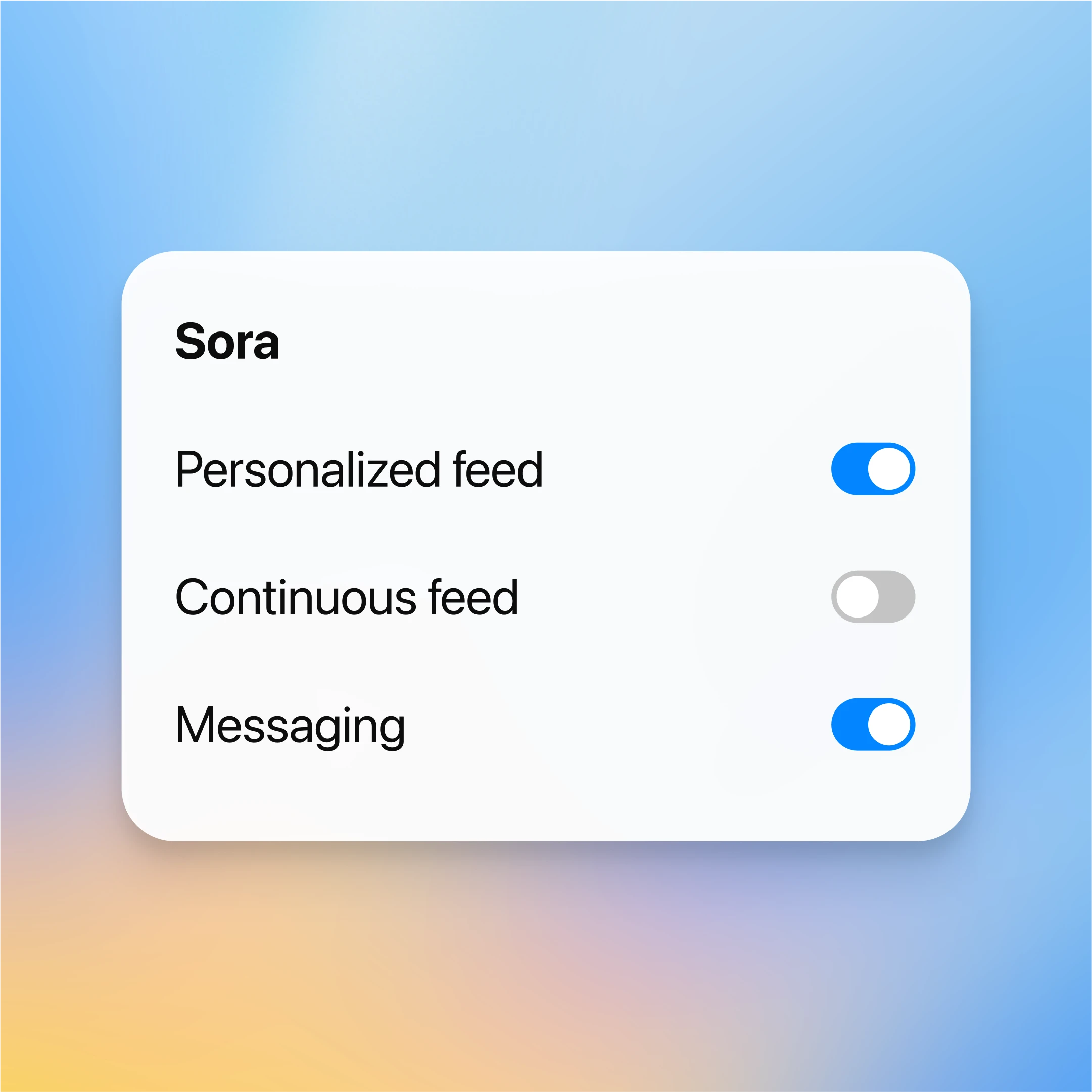
Sora is a new app for AI video creation. You can manage your teen’s settings for Sora directly in ChatGPT, including:
Personalized feed: Opt out of a personalized feed.
Continuous feed: Control whether there is an uninterrupted feed of content while scrolling.
Messaging: Turn off the ability for your teen to send and receive direct messages.
Don’t have a ChatGPT account? Create one here.
Built with safety in mind
Safety and transparency aren’t add-ons—they’re built into how we design, test, and improve ChatGPT. We work with experts, test safeguards, and update our systems regularly to reduce risks. ChatGPT is trained to avoid showing harmful material and to respond in a respectful way for all users.
Privacy and controls
We don’t sell your data for marketing or advertising, and you control how it’s used. Learn more about how we train our models, and how we collect and use data in ChatGPT.
Age prediction
To help set up the right experience, ChatGPT uses account signals to predict whether an account belongs to a teen or an adult. This allows us to add extra safeguards when they’re needed. Users can verify their age in account settings.
Policies against misuse
We set usage policies to prevent scams, disinformation, election interference, and other harmful behavior. We also use a range of tools to address content that may violate the law or our policies.
Support beyond ChatGPT
If someone expresses intent to self-harm, we refer them to real-world resources. Parents may be notified if they have linked their teen’s account with parental controls.
Understanding limitations
ChatGPT can make mistakes and sometimes gives answers that sound right but aren’t. Double check answers for important matters.
Share feedback
OpenAI provides safeguards, but how ChatGPT is used also matters. Families can help keep ChatGPT safe by giving feedback or reporting a conversation when something feels off.
Explore AI literacy resources
Developed with expert input, read our family guide to help teens use AI responsibly and tips for parents to learn more about how AI works and support healthy use at home.
Using ChatGPT at home
ChatGPT supports studying, planning for the future, and building everyday skills. These chats, inspired by college student examples, have been tailored for teens.
Built-in tools for schoolwork and projects


Projects
Organize chats and files in one place to keep school work, college prep, and clubs on track.



More for parents
- Study mode
See how study mode turns ChatGPT into an always-on study partner with guided explanations, questions, and progress tracking to help you learn better.
- Create with Canva in ChatGPT
Create, preview, and edit Canva designs directly in your ChatGPT conversations. Go from an idea to a ready-to-share presentation or post — all in one flow.
- Recipes and cooking with ChatGPT
Tap into ready-made chats for pantry meals, budget cooking, meal prep, substitutions, and fast, reliable recipe help.